

Securely store and share database credentials across projects with Data Connections | Posit Cloud
videoimage: thumbnail.jpg
Transcript#
This transcript was generated automatically and may contain errors.
Posit Cloud is an online platform where you can easily do and share data work with just a few clicks. We recently added a new feature called Data Connections which lets you securely store database credentials and share them across data projects and among your collaborators.
In this tutorial we will demonstrate how to achieve this by using a publicly available Postgres database. Let's get started. The first thing we're going to do is create a new space. You can find this in the upper left hand nav bar.
Let's go ahead and create a new space calling it RNA Project.
This will create a new space for us to do work and invite others to collaborate. You can start a new project but before we do that let's go to Data. This is where you're going to add your new data connection. Click on Add Connection and we're going to make a new connection name.
Creating a data connection
Let's type in RNA Central which is going to be a Postgres database. These credentials are publicly available and linked to in the description. Our user is going to be Reader. I'll paste in the password which you can find online and server. Finally we're going to go ahead and put in our port number and our database name. Once we do this we're going to click on OK.
The database connection is going to be stored and saved and we're going to be able to use this in projects. Let's go back to content and now let's create a new RStudio IDE project from the drop down.
While the project is loading let's rename it RNA Analysis.
Connecting to the database in RStudio
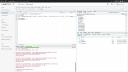
Once Posit Cloud is done spinning up your individualized IDE we're going to be able to access that database connection that we just defined. So if you look in the upper right hand of the IDE and move to the connections tab we're going to start a new connection and there it is the database connection we just saved RNA Central.
Clicking on this is going to show you a code snippet which includes all the information including the encrypted password. Let's use a new R script to connect to and analyze the data.
The first thing this is going to do is load in a necessary package and while it's doing that let's name the R script RNA Explore.
From here we can then load the library that we need and the DBI library and create our first connection.
The connection has been made and you can see in the connections tab all of the schemas available for this database connection.
Querying the database
Before we make our first query let's bring in two libraries dplyr and dbplyr. Now neither of these have been installed yet but the IDE will remind me of this and we can install right away.
Once these packages are ready we're going to go ahead and make a query and we can do this by using the con variable that has stored the connection that is still live.
Let's go ahead and create a new variable named results. From here we're going to call the connection and then bring in the specific schema name and table that we're interested in.
For now we're just going to go ahead and get the top 200 results within this table. When I run this we went to the database, we got all the information on the top 200 rows, and now we can see this in the environment. We have both our connection still and results data frame which has 200 observations.
If we take a quick peek we can see the type of information that is stored and there seems to be an integer variable length for each of the observations. We can quickly turn this into a histogram to see what we're working with.
Some observations are in the 0 to 500 range while many are up around 1200 or above.
Reusing connections across projects
The best part is if you create a new project you'll be able to access the same database connection and if you change the information from your connection it'll automatically update in new and existing projects once it's relaunched.
and if you change the information from your connection it'll automatically update in new and existing projects once it's relaunched.
I hope you enjoyed learning about the new data connections feature in Posit Cloud. You can visit posit.cloud to create a free account, connect to your databases, and begin exploring.
